Macro Automation Studio 1.0.116 Major Update: Claude CLI, UI Builder, Git and More
Macro Automation Studio's biggest update yet: integrated Claude CLI, a visual UI Builder for forms and dashboards, built-in Git, and Korean OCR.
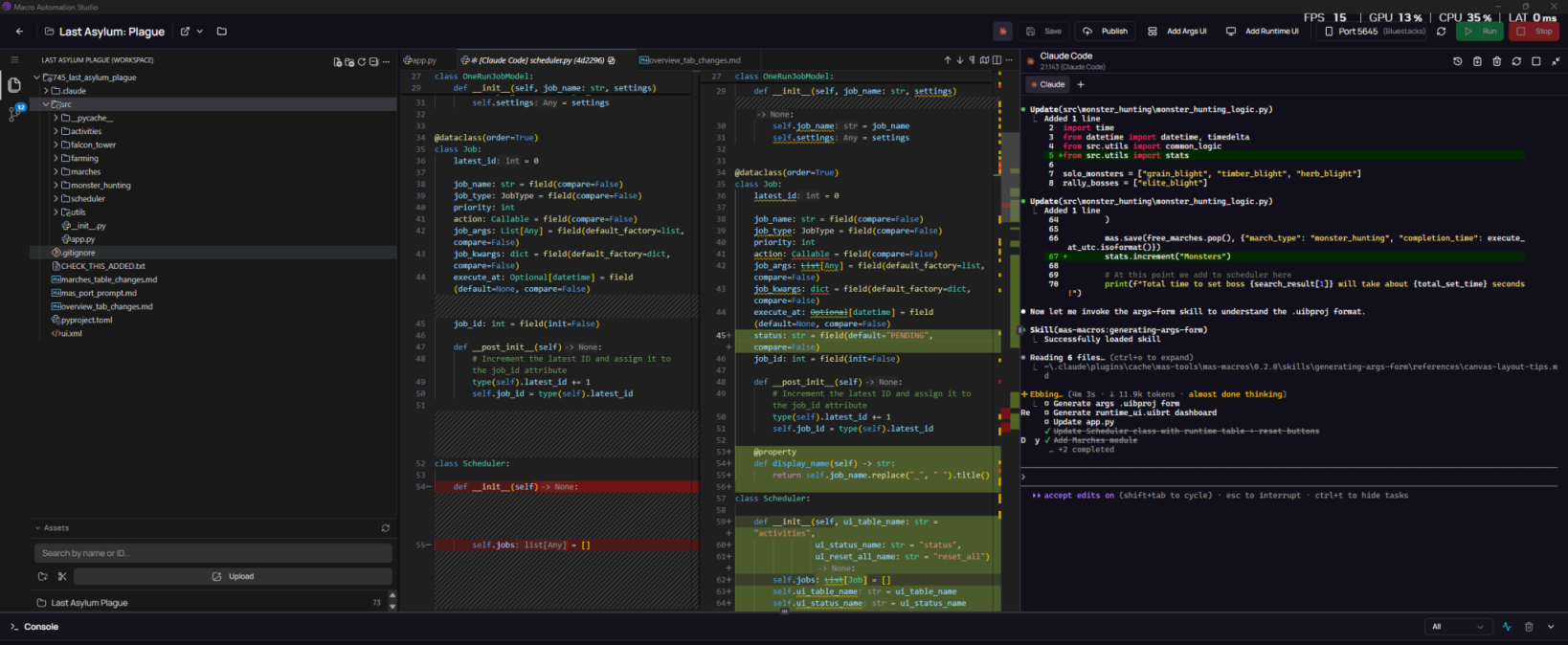
This is the largest single update to Macro Automation Studio since launch. It pulls together months of feedback from our community, our developers, and our own internal macro builders into one release.
The theme tying it all together is straightforward. The studio should help you build the macro, not just host it.
You now get an AI pair-programmer with full SDK knowledge, a visual UI Builder for both inputs and live dashboards, Git baked into the studio, official support for editing scripts in any external IDE, Korean OCR, and a smarter publishing flow.
Let’s walk through it.
1. Claude CLI Built Into the IDE
The most ambitious feature in this release is Claude CLI, now embedded directly inside the Macro Automation Studio IDE. Alongside it we’ve shipped a custom MAS skill.
That skill is the important part. It isn’t a generic AI helper. It has been loaded with deep knowledge of:
- The full MAS Python SDK, including
mas.interaction,mas.vision,mas.storage,mas.app,mas.images,mas.ui, andmas.device, plus every helper they expose. - The argument-form schema (
.uibprojfiles), including all eleven widget kinds, layout rules, and validation requirements. - The runtime dashboard schema (
.uibrtfiles), including whichmas.ui.*Python call drives which widget property. - The conventions of the standard project layout:
src/app.py,src/script_args.py, the UIBuilder files, image assets, and storage patterns.
In practice that means you can ask Claude things like:
“Write me a macro that taps the Collect button whenever it appears on screen, with a 3-second timeout and a runtime progress bar that shows how many collections it’s done.”
And the response is working MAS code, not generic Python that you then have to retrofit into the SDK. It knows wait_for_object, it knows how to wire mas.ui.set_progress, and it knows to read CLI arguments via from src.script_args import args.
You can also point it at an existing macro and ask it to refactor, debug, extend, or generate the matching UI files. Build conversationally, ship faster.
The gap between “I know what I want to automate” and “I have working code that does it” has been the biggest piece of friction for new and intermediate users. The embedded Claude CLI closes that gap.
2. The UI Builder
Macros aren’t only code that runs. They’re code that someone configures and then watches. This release gives both of those experiences a proper visual editor.
Argument Forms (.uibproj)
When your macro needs inputs (a target image to look for, a swipe duration, a list of accounts, a checkbox for “skip first run”) you used to wire those manually. Now you drag and drop them on a pixel canvas.
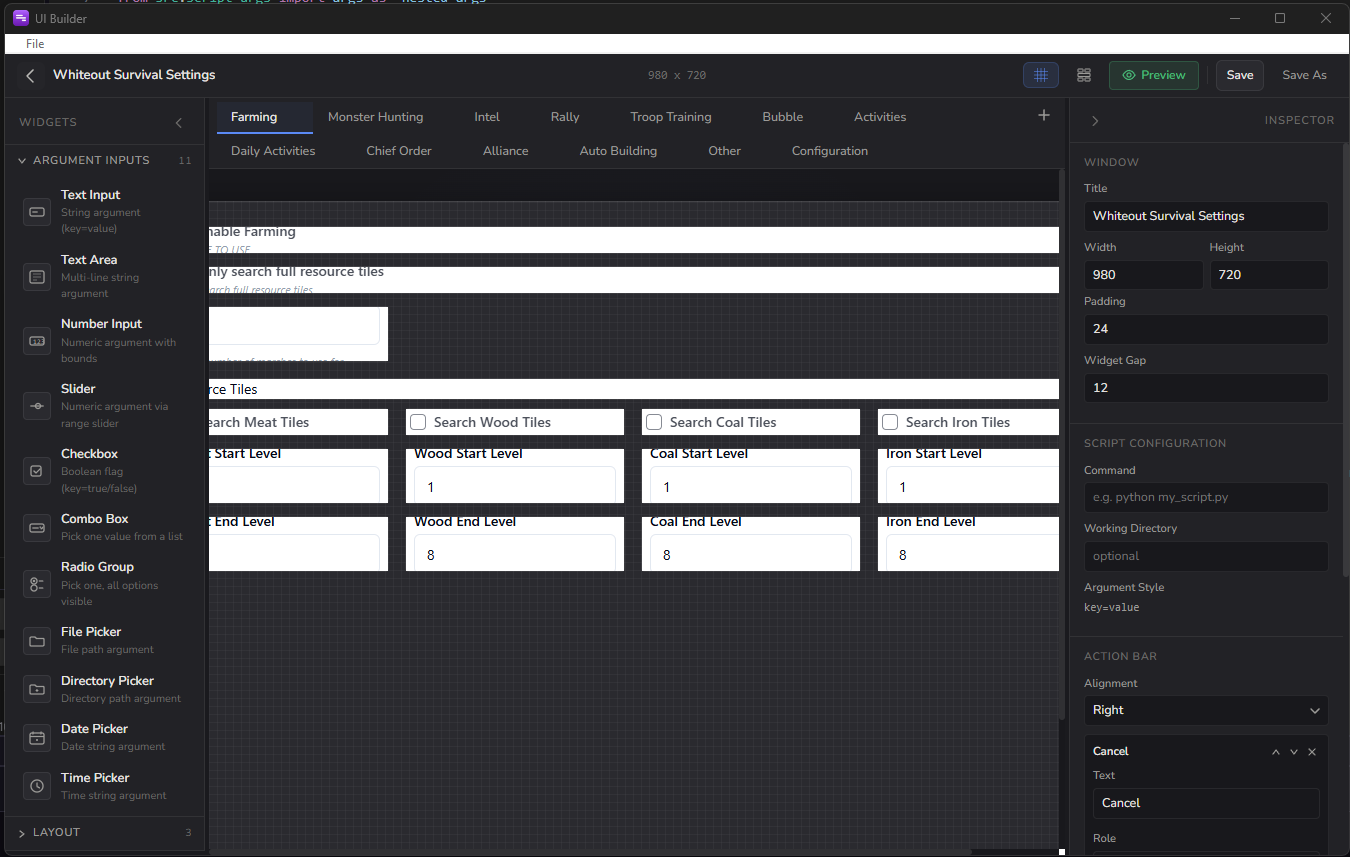
The UI Builder supports the widget kinds you’d actually reach for:
- Text input, text area, number input
- Sliders, checkboxes, comboboxes, radio groups
- File picker, directory picker
- Date picker, time picker
- Action-bar buttons, layout widgets, group containers
Behind the scenes the builder generates the .uibproj, the matching ui.xml, and a clean script_args.py that exposes your fields as typed Python. So your script reads inputs like args.threshold instead of digging through dictionaries.
Runtime Dashboards (.uibrt)
The other half of the UI Builder is just as important: a runtime dashboard editor. While a macro runs, you can show:
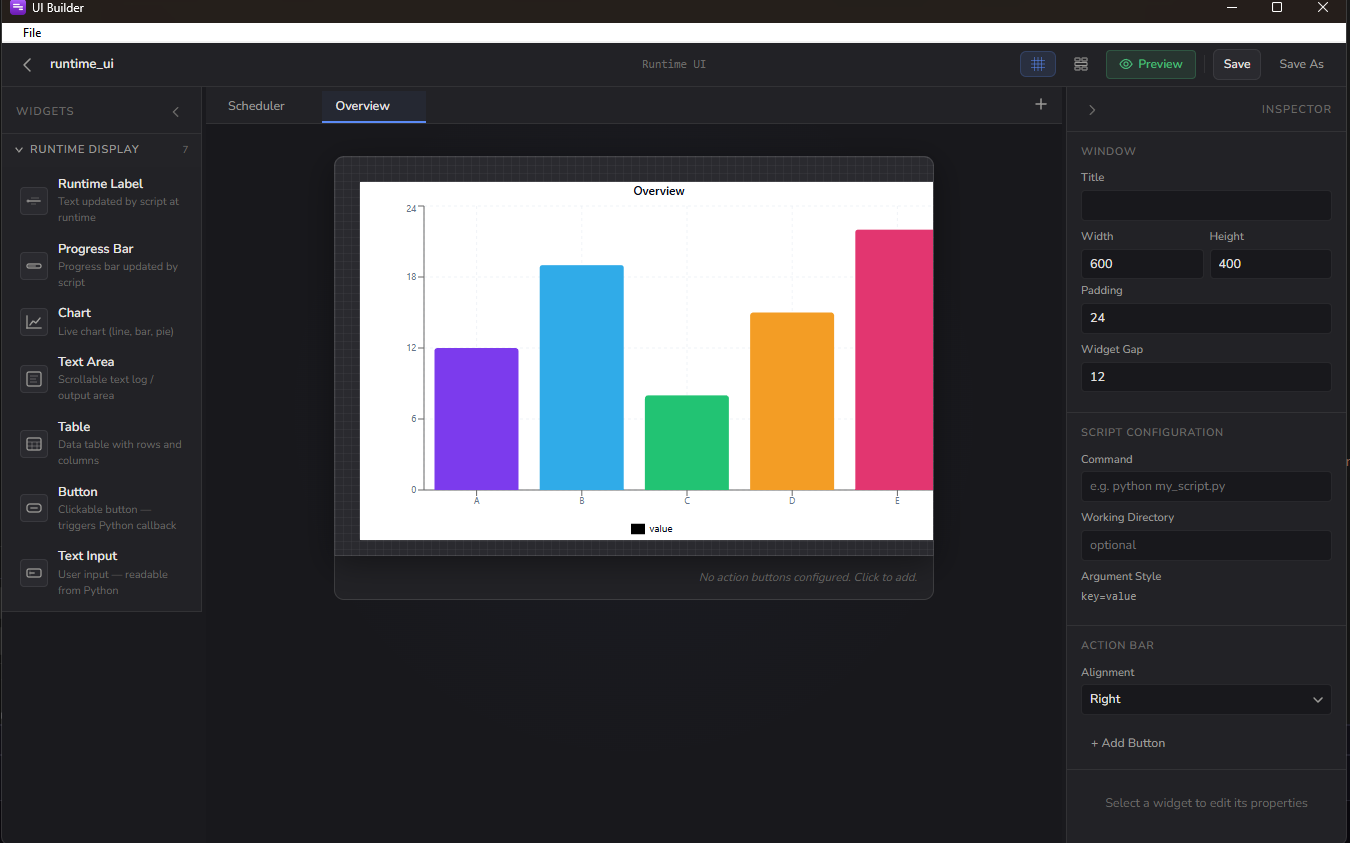
- Labels that update with live values
- Progress bars driven by
mas.ui.set_progress - Charts fed by
mas.ui.add_data_point - Text areas for streaming logs via
mas.ui.append_text - Tables updated through
mas.ui.set_table_data - Buttons and inputs that the script can react to with
mas.ui.wait_for_event
This means you can finally see what your long-running macro is doing (accounts processed, items collected, errors caught) without scrolling through log files. And because Claude knows the runtime schema too, you can ask it to “add a chart that tracks resources per minute” and it will wire both the widget and the Python that drives it.
A pro tip: combine Claude with the UI Builder. Describe the form in plain English (“two text inputs, a slider from 0 to 100, a checkbox for headless mode”) and Claude will generate the .uibproj for you to refine visually.
3. Open Your Script in Any External Editor
Some workflows fit better in a full IDE. With this update you can open the script for any MAS project directly in:
- Visual Studio Code
- Cursor
- PyCharm
- Or any other editor of your choice.
The project structure stays MAS-native (src/app.py, src/script_args.py, the UIBuilder files, your image assets) but you’re free to edit it with whatever tooling your fingers already know. Changes made externally are picked up by the studio automatically.
This pairs especially well with Claude CLI. Keep MAS open for the device view, asset helper, and runtime dashboard, while editing the script in your favorite editor next to it.
4. Smarter Publishing With an Image Selector
If you’ve ever built a macro for the marketplace, you know the pain. You accumulate dozens of test images during development, but only a handful are actually used by the published version. Until now, everything got bundled.
The publishing flow now includes an image selector. When you go to publish, MAS shows you every image in the project and lets you choose exactly which ones to include. The result:
- Smaller, leaner macro packages for end users
- Cleaner marketplace listings without unused dev assets
- Faster downloads and installs for your subscribers
Combined with the existing image deduplication across versions, this is a meaningful quality-of-life improvement for anyone shipping macros publicly.
5. Korean OCR Support
MAS now ships with native Korean OCR data. If you’re automating Korean-language apps, games, or workflows, on-screen text recognition will reliably read 한글 out of the box. No extra setup, no manual model swap.
This is the first of several language expansions on our roadmap, driven by direct community demand.
6. Auto-Creation Bug Fixes
The auto-create flow (the one-click path for spinning up a new macro from a template or detection) has been hardened with a number of fixes this release. Edge cases around project naming, asset path resolution, and initial UIBuilder file generation have all been addressed.
If you’ve hit a snag with auto-create in the past, please try it again. Most of the rough edges are gone.
7. Git Built Into the Studio
Macro projects are full-fledged projects now. They have multiple files, sometimes multiple authors, and they evolve over time. So version control has finally come home.
You can now manage Git directly inside Macro Automation Studio:
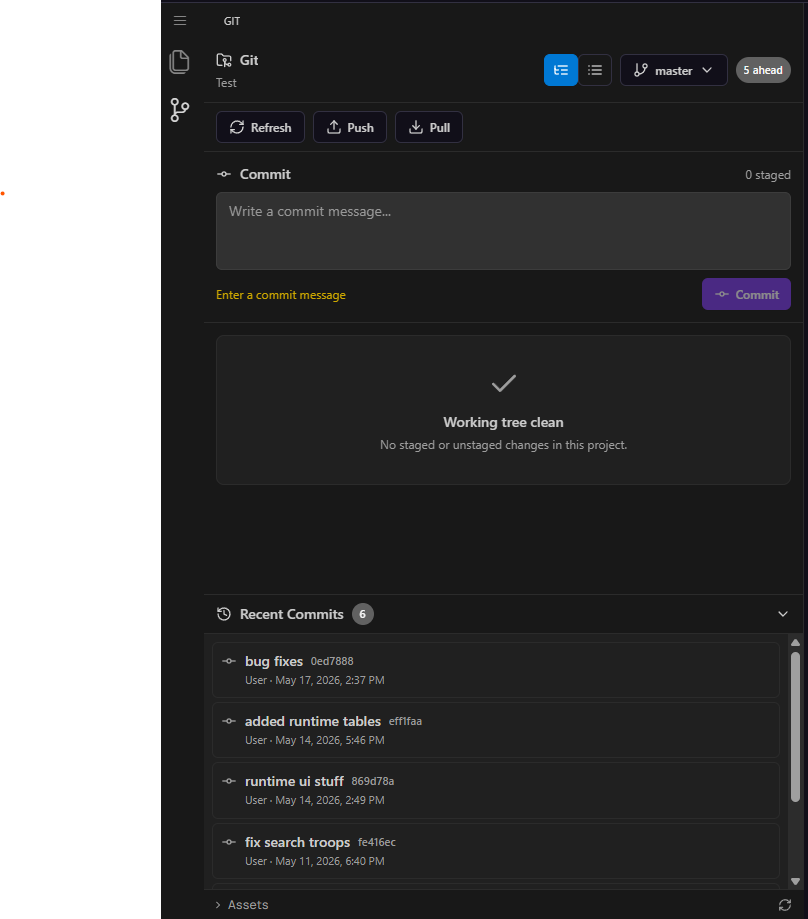
- Initialize a repo on any project
- Create, switch, and merge branches
- Stage changes and commit from inside the studio
- Push to a remote (GitHub, GitLab, Bitbucket, or self-hosted)
- See history and revert when something breaks
This is huge for serious automation builders. You can confidently experiment on a branch, recover when an experiment goes sideways, and collaborate with teammates without leaving the IDE.
8. Custom Device UIs
Because the UI Builder is now first-class, the Devices section has been upgraded to display the custom UIs that your macros expose.
When a macro defines a runtime dashboard, that dashboard is visible directly under the device that’s running it. You can:
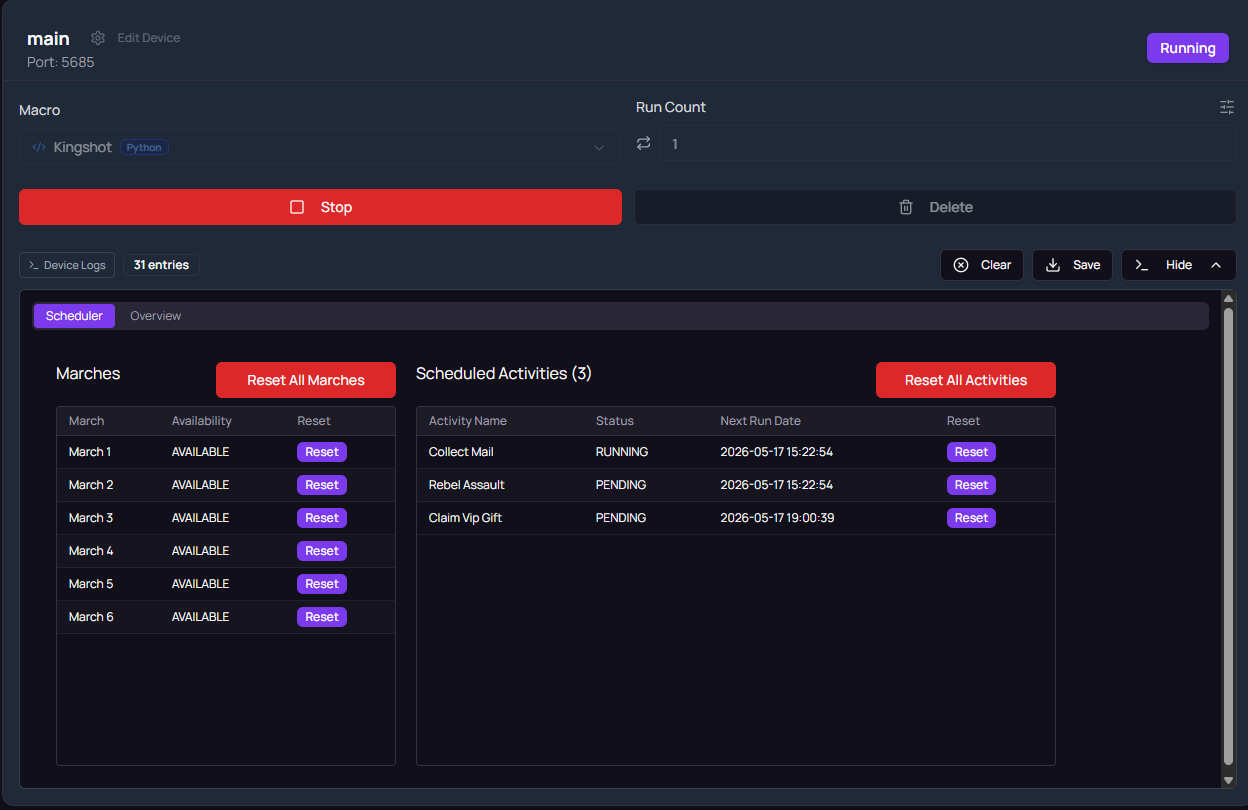
- See live labels, progress, charts, logs, and tables for each running macro
- Interact with runtime buttons and inputs
- Switch between multiple running macros across multiple devices without losing context
For multi-device users running ten emulator instances of Whiteout Survival, or testing an app across BlueStacks, LDPlayer, and MuMu at once, the studio now acts as a proper operations console.
Where This Leaves You
Each of these features is useful on its own. Together they describe a different kind of automation studio.
Claude CLI writes the macro and the UIs with you. The UI Builder turns those macros into applications with inputs and live dashboards. External editor support lets you bring your existing tooling. Image selection keeps published macros lean. Korean OCR opens up new app ecosystems. Auto-create fixes make first runs smoother. Built-in Git makes serious projects manageable. Custom device UIs make the studio a control center for live automation.
The destination we’re aiming for: you describe an automation in plain English, MAS scaffolds the code and the UI, you refine both visually, version-control your work, and watch it run on a dashboard. All in one app.
This release is a big step toward that.
How to Get the Update
If you already have Macro Automation Studio installed, just launch the app. It will prompt you to update to the latest version. New users can download fresh:
👉 Download Macro Automation Studio
Compatible with Windows 10/11 and native Apple Silicon macOS (M1 to M5).
What’s Next
Our goal is straightforward: make Android automation development as quick as possible. Two features are already in motion that push directly toward that.
An AI agent that maps your target app for you. Instead of clicking through an app yourself to find buttons and learn screen flow, the agent will play through the app, identify the interactive elements on every screen, and build a graph of how to get from any screen to any other. When you’re building a macro and need to reach the “Daily Login Rewards” menu, the agent will already know the path. Less time spent learning the app, more time spent automating it.
A built-in debugger. Step through a running macro, inspect what the script sees, pause on conditions, and find out exactly why a tap didn’t land or an image match failed. The current debug loop of “add prints, re-run, hope” goes away.
More to come, but those two are the next big shifts. As always, the roadmap is shaped by community feedback.
Related Reading
- What Is Macro Automation Studio?: the full feature tour for new users.
- Macro Automation Studio Overview: platform philosophy and design.
- Best BlueStacks Macros: what to build first.
Released: May 17, 2026.
Keep reading
Related guides
Macro Automation Studio 1.0.129: A Rebuilt Agent Chat
Release notes for Macro Automation Studio 1.0.129 (Windows) and 1.1.4 (macOS): a rebuilt MAS Agent chat, an agent that stays on task and sandbox-checked macros.
Macro Automation Studio 1.0.125: New Interface, Debugger, Rebuilt Engine
Release notes for Macro Automation Studio 1.0.125 and 1.0.23: a new interface, an in-editor Python debugger, a rebuilt execution engine and new SDK features.
Macro Automation Studio: Build, Customize, and Run Powerful Automation Workflows
Macro Automation Studio is a flexible automation platform for building, customizing, and running advanced workflows using visual tools or Python.
Ready to automate it?
Download Macro Automation Studio, point it at your emulator, cloud device or phone, and let the agent build the first macro.