Devices
BlueStacks ADB Connect and Port Setup for MAS
Enable ADB in BlueStacks 5, find the ADB port, connect Macro Automation Studio, and fix device-not-found and offline errors on Windows and Mac.
- Windows
- Mac
- Emulator
- Studio
- Python SDK
On this page
- Before you start
- 1. Install BlueStacks
- 2. Recommended settings
- 3. Enable ADB in BlueStacks 5
- 4. The BlueStacks ADB port and how MAS scans it
- 5. Connect BlueStacks over ADB in MAS
- Macros on BlueStacks
- Several BlueStacks instances
- Troubleshooting
- Enable ADB in BlueStacks 5
- Find or change the ADB port
- ADB device not found
- Device shows offline
- BlueStacks ADB on Mac
- Control it from Python
This guide shows how to connect BlueStacks to Macro Automation Studio (MAS) over ADB: enable it, find the ADB port, and add the instance as a device. It covers BlueStacks 5 on Windows and the BlueStacks build for Apple Silicon Macs, and it ends with the errors people hit most often.
Before you start
- MAS installed and signed in on Windows 10 or 11, or on an Apple Silicon Mac. MAS is a free download for the trial; get it from the download page.
- BlueStacks installed from bluestacks.com and started once.
- The instance fully booted to the Android home screen.
- The apps you want to automate installed and signed in inside BlueStacks.
1. Install BlueStacks
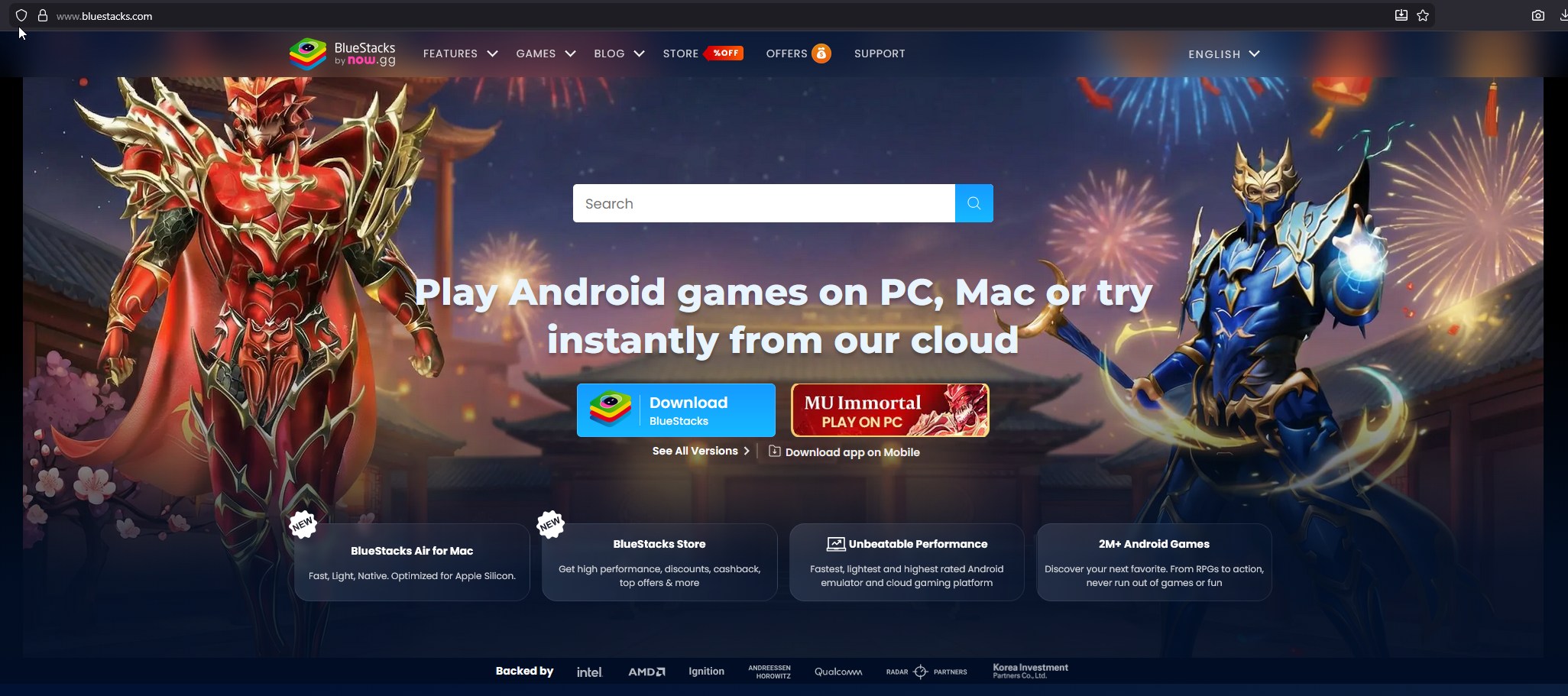
- Download BlueStacks 5 from the vendor site and run the installer.
- Start BlueStacks and wait for the home screen.
- Install and sign in to the apps you want to automate before you add the device to MAS.
- Download the Apple Silicon build, BlueStacks Air, from bluestacks.com/mac.
- Open the DMG and move BlueStacks to Applications.
- Start it from Applications and wait for the home screen.
2. Recommended settings
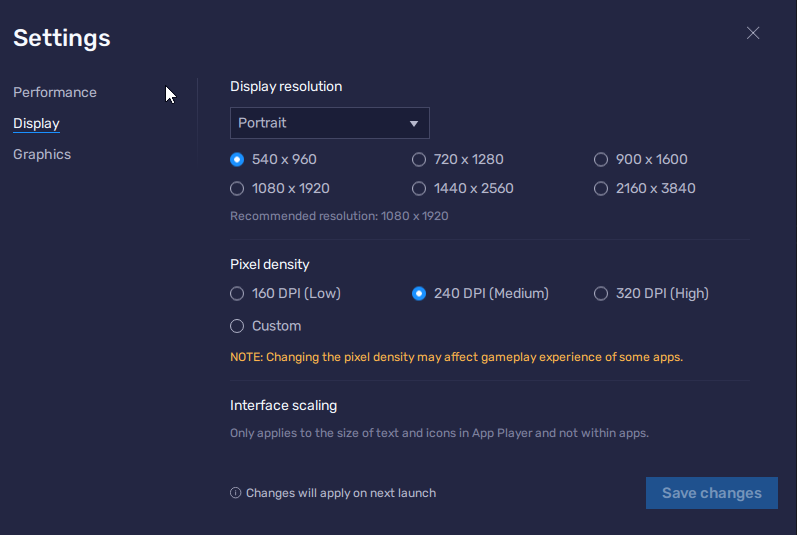
MAS matches template images pixel for pixel, so the display must not change after you capture templates. Open Settings from the gear icon in the side toolbar and set:
| Tab | Setting | Value |
|---|---|---|
| Performance | CPU allocation | 2 cores; more is fine while you develop |
| Performance | Memory allocation | 4 GB or more if available |
| Display | Resolution | Portrait, 540 x 960 |
| Display | Pixel density | 240 DPI |
Click Save changes and restart the instance when BlueStacks asks. Macros written against the MAS baseline expect 540x960 at 240 DPI; a macro you write yourself expects whatever resolution you captured in Asset Lab. If a run is laggy, close background apps and give the instance more cores and memory.
3. Enable ADB in BlueStacks 5
BlueStacks ships with ADB switched off. MAS needs it on.
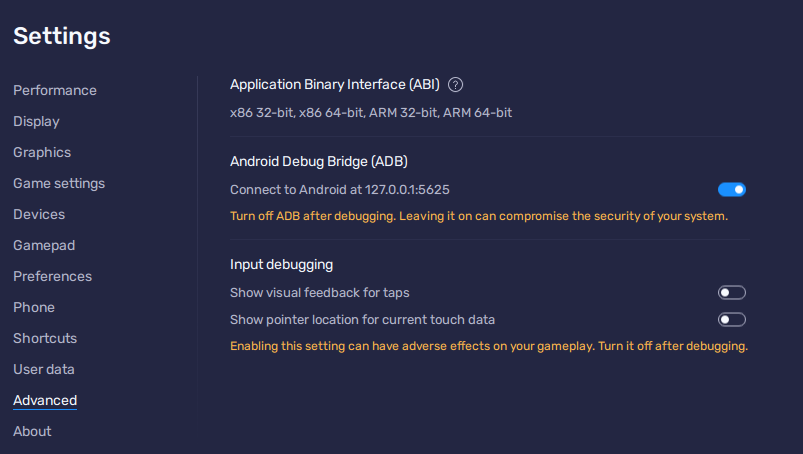
- Click the gear icon in the side toolbar to open Settings.
- Click the Advanced tab.
- Switch on Android Debug Bridge.
- Click Save changes.
- Note the address shown under the toggle, for example
127.0.0.1:5555. The number after the colon is the ADB port. The first instance usually gets 5555; the screenshot below shows 5625.
- Open Settings from the gear icon in the side toolbar or the menu icon on the top bar.
- Look for an Android Debug Bridge option. The vendor’s settings guide for BlueStacks Air lists Performance, Display, Graphics, Preferences and About, and no ADB toggle. Older BlueStacks builds for macOS had one in Preferences.
- If your build has the option, switch it on, save, and note the port after
127.0.0.1. - If it does not, MAS cannot connect to this build. Use another emulator that exposes ADB on the Mac, or a cloud device.
4. The BlueStacks ADB port and how MAS scans it
MAS does not run adb devices to discover emulators. It scans the running processes and keeps a port when all of these hold:
- The process name contains
hd-playerorbluestacks. - The port is between 5555 and 8500.
- The socket listens on
127.0.0.1,0.0.0.0or all interfaces.
Matching ports appear in the Add New Device dialog labelled Bluestacks, for example 5555 - Bluestacks. MAS scans when you open a device group and each time you click Refresh. Every BlueStacks instance listens on its own port, so two instances give two entries.
5. Connect BlueStacks over ADB in MAS
- Open Device Groups in the sidebar and open a group, or create one.
- Click Add Device.
- Type a Device Name of up to 50 characters.
- In Port, pick the
Bluestacksentry for this instance. Click Refresh if the list is empty. - If BlueStacks shows a port MAS did not list, choose Custom Port and type it. MAS accepts 1024 to 65535.
- Optionally choose a Startup Macro.
- Click Add Device, then click Start on the device card.
The card shows Connecting and then Running. MAS starts its own adb server, removes any stale entry for 127.0.0.1:<port>, and runs adb connect against it.
Macros on BlueStacks
BlueStacks’ own macro recorder replays taps at fixed coordinates. A MAS macro is a Python script that looks at the screen first: template matching finds the button, OCR reads the text, and retries absorb a slow load or a pop-up. Getting started runs your first macro, Image recognition macros rebuilds a recorded routine as a screen-aware one, and the Scheduler runs it daily, weekly or monthly.
Several BlueStacks instances
Instances created in the Multi-Instance Manager each listen on their own ADB port. Add each one as a separate device in the same device group, give each its macro and settings profile, and use Start All and Stop All on the group. See Device groups for per-device arguments and proxies.
Troubleshooting
Enable ADB in BlueStacks 5
The Port list in MAS is empty and adb connect 127.0.0.1:5555 answers “cannot connect” or “connection refused”. ADB is off. Open Settings, click Advanced, switch on Android Debug Bridge, click Save changes, restart the instance, then click Refresh in Add New Device. If the Advanced tab has no such toggle, install the current BlueStacks 5 from the vendor site.
Find or change the ADB port
The port sits under the Android Debug Bridge toggle as 127.0.0.1:<port>. BlueStacks assigns it at start and moves to another port when 5555 is busy, so it can change after you create, clone or delete instances; the vendor’s ADB guide documents no field to set it by hand. When it changes, click Edit Device on the card in MAS and pick the new port. Starting instances in the same order keeps ports stable.
ADB device not found
The card ends in Error with “Failed to start device”, the log says “unable to connect to device”, or a script raises DeviceNotConnectedError.
- The instance is still booting. Wait for the home screen, then click Start again.
- The port on the card is not the port BlueStacks shows. Fix it with Edit Device.
- An update switched ADB off again. Check the Advanced tab.
- Run
adb connect 127.0.0.1:<port>in a terminal. “connected to” means MAS will connect too.
Device shows offline
adb devices lists 127.0.0.1:<port> offline and commands hang. The adb daemon inside the instance stopped answering, usually after sleep, an update or a second adb server on the machine. Click Stop on the card, restart the instance, close other tools that run their own adb server, and click Start; MAS reconnects from scratch. If it stays offline, restart MAS so its adb server starts clean. More fixes are on ADB troubleshooting.
BlueStacks ADB on Mac
Two things differ on a Mac. First, MAS needs an adb binary: it looks inside its app bundle, then on your PATH, then in the Homebrew folders. If MAS reports “ADB executable not found. Please install ADB using your package manager”, install adb with Homebrew and restart MAS:
brew install android-platform-toolsSecond, MAS always dials 127.0.0.1, so BlueStacks must run on the same Mac and expose ADB. BlueStacks Air is the only build for Apple Silicon and its documented settings have no ADB toggle; without one, MAS cannot drive it.
Control it from Python
With the card at Running, a macro’s src/app.py drives BlueStacks through the mas package. MAS chooses the port, so scripts never reference it.
import mas

size = mas.get_screen_size()
mas.log(f"BlueStacks screen is {size.width}x{size.height}")

match = mas.find_object_retry(1234, total_tries=3, time_sleep=2.0)
if match:
    mas.click(match.x, match.y)
Read the SDK overview for every namespace, and Control an Android emulator from Python for a complete first script.
Next steps
Related pages
Thanks. If something is wrong, tell us in Discord.
Questions? Ask in Discord